More about zero — Gwalior India (Bill Casselman)

An occasionally updated collection of links to projects and resources for the Raspberry Pi.
Projects
Blogs

piRadio
Some starter projects with GPIO
Mio — GPIO: one input (a switch), and one output (an LED).

by XKCD
To improve your life/work balance, please go to XKCD.
INTERNET RADIO ON THE RASPBERRY PI
Below is a photo of my Raspberry Pi, playing Miles Davis & More – I’m Oldfashioned at 2 am. The installation procedure for “PiRadio” is given below the photo, along with a short list of internet radio stations. I’ve also given directions on how to find the URL, aka web address, of stations you would like to listen to. This was the hardest part:-) At the end, I’ve given (i) a short list of commands for the player program, mpc, (ii) a shell script, ir, internet radio, for playing stations by name, e.g., play jazz. It does other thins as well, e.g., maintaining a list of songs that you have “liked.”
Credit: I learned how to make a PiRadio from Avogadro’s number.
piRadio @ 2AM
1. Update the Raspberry Pi System:
   sudo apt-get update
   sudo apt-get upgrade
2. Install mpc & mpd:
sudo apt-get install mpc mpd
3. Add stations:
   mpc add http://69.166.45.47:8000              # NPR News
   mpc add http://174.37.16.73:8158/Cosmitto     # Jazz
4. Have fun:
   mpc play 2      # play some jazz
   mpc current     # list current song
   mpc play 1      # listen to NPR
   mpc playlist    # see what's playing
   mpc stop        # time to go to work
NOTES
(1) FINDING INTERNET RADIO STATIONS
The hardest part was finding correct URL’s for the radio stations. Here is one method. (a) Go to shoutcast.com. Find your station there. I found this station listed in blue:
Concerto & Chamber Music etc. (KOREA) Recently played: Borodin – String Quartet No.2 in D major – II.
You need to download the file linked to this and edit it with a text editor. On the mac, control click on the blue title. The file will be downloaded to your Downloads folder. You will find it as the most recently added file with name like tunein-station.pls. Open the file in a text editor. You get something like this:
   numberofentries=1
   File1=http://121.135.98.32:8000
   Title1=(#1 - 15/50) Concerto & Chamber Music etc. (KOREA)
   Length1=-1
   Version=2
The title was the last piece/song played. What you want is this: http://121.135.98.32:8000
Add this station with the command
mpc add http://121.135.98.32:8000
(2) SOME INTERNET RADIO STATIONS
   1    NPR news             http://69.166.45.47:8000
   2    Jazz                 http://174.37.16.73:8158/Cosmitto
   3    Chamber music        http://121.135.98.32:8000
   4    Baroque              http://85.25.100.57:8010
   5    Classical            http://174.36.206.197:8000
   6    Piano Trio           http://72.26.204.28:6874
   7    Opera                http://82.197.167.139:80
(3) SOME USEFUL COMMANDS
  play N             - play song/station N
  stop               - stop playing
  add URL   	     - add stream at URL
  clear              - clear playlist
  crop	             - remove all songs/stations except for
                       the one currently playing
  current            - show the currently playing song
  del N	             - removes playlist item N
  move A B           - moves item at position A to
                       position B in the playlist
  next               - starts playing next song/station on playlist.
  prev               - start playing previous song/station on playlist
  playlist    	     - display playlist
See man mpc for the complete list.
(4) A SHELL SCRIPT
The shell script ir, aka internet radio can play stations by name, list the streams you have added to your playlist, maintain a list of songs you have “liked”, and more. Examples:
– ir jazz – play my jazz station
– ir list – list what is currently playing on all stations
– ir now – see what is playing now:
– ir stations – list stations
– ir stream – list the streams of the stations
– off – turn radio off
– volume L – set volume to L, e.g., ir volume 85 to set volume to 85%
– like – log currently playing song to ~/likes.txt
Abbreviations: type ir to see these, e.g., ir n for ir now.
You will need to edit the file below so that the first set of commands, “ir jazz”, etc, conform to your playlist.
#!/bin/bash

# ir: play internet radio station, e.g. "ir npr"

case $1 in
  [0-9]*) mpc play $1
      ;;
  npr) mpc play 1
       ;;
  ja*) echo; echo "  Jazz"; echo
       mpc play 2
       ;;
  ve*) echo echo "  Venice"; echo
       mpc play 5
       ;;
   ba*) echo; echo "  Baroque"; echo;
       mpc play 4
       ;;
   tr*) echo; echo "Piano Trio"; echo;
       mpc play 6
       ;;
   ch*) echo; echo "  Chamber Music"; echo;
       mpc play 3
       ;;
   p*) # playing
       echo
       mpc playlist -f "  %position% %name% -- %title%" | sed 's/$/\n/'
      ;;
   str*) # streams
     mpc -f "  %position% %name% -- %file%" playlist
     ;;
   sta*)
    mpc -f "%name%" playlist | awk '{printf "  %-3s %s %s %s\n", NR, $1, $2, $3 }'
     ;;
   o*) # off
      mpc stop
      ;;
   l*) # like
      # log info on currently playing song that I like
      echo ""
      mpc current | sed 's/^/  /'
      echo
      echo "  -- LIKED"
      echo
      mpc current >> ~/likes.txt
      echo "" >> ~/likes.txt
      ;;
    -l*) # likes
      less ~/likes.txt
      ;;
    n*) # now
      mpc current
      ;;
    v*) # volume
     mpc volume $2
     ;;
   *)
       echo
       echo "Stations: baroque, chamber, jazz, npr, trio, venice"
       echo "Commands: like, -likes, now, off, volume"
       echo "Lists: playing, stations, streams"
       echo
       echo "The volume command takes an extra argument, as in 'ir volume 100'."
       echo "The command 'ir like' logs the currently playing song to ~/likes.txt."
       echo "The ecommand 'ir likes' display the file of songs you like."
       echo
       echo "Abbreviations: generaly the first letter or first few letters, e.g.,"
       echo "l = like, -l = -likes, n = now, o = off"
       echo "p = playing, sta = stations, str = streams, v = volume"
       echo "Not every command has an abbreviation"
       echo
       ;;
esac
PiFace is an IO board for the Raspberry Pi computer — 8 buffered inputs, 8 outputs, and two relays that theoretically can handle 10 amperes at 230 volts. See Gordon’s Projects for a full review. The model allows you to disconnect the relays from two of the outputs, and there is a Python interface. To test the board (and my understanding of it), I rigged up a simple circuit with one external switch — a Morse code type key — one, LED, and one resistor. Below are photos of (i) the PiFace board riding on top of the Raspberry Pi, (ii) the circuit board (iii) the whole kit-and-kaboodle, (iv) the circuit.
The code for running the circuit is at gitHub. (i) Use on(7) and off(7) to turn the LED on an off manually; 7 is the pin the LED is wired to; (ii) use blink(7) for a more exciting test; (iii) use read(0) to read the switch, which is attached to pin 0; (iv) use control(7,0) to control LED on pin 7 by the switch on pin 0 — flip the switch attached to pin 0 and ground to turn on the LED on pin 7. Of course all this is ridiculous overkill, but the idea is to get started and to test the PiFace + Raspberry Pi combo.
Note added: Stephen Visser has an excellent article on the PiFace.
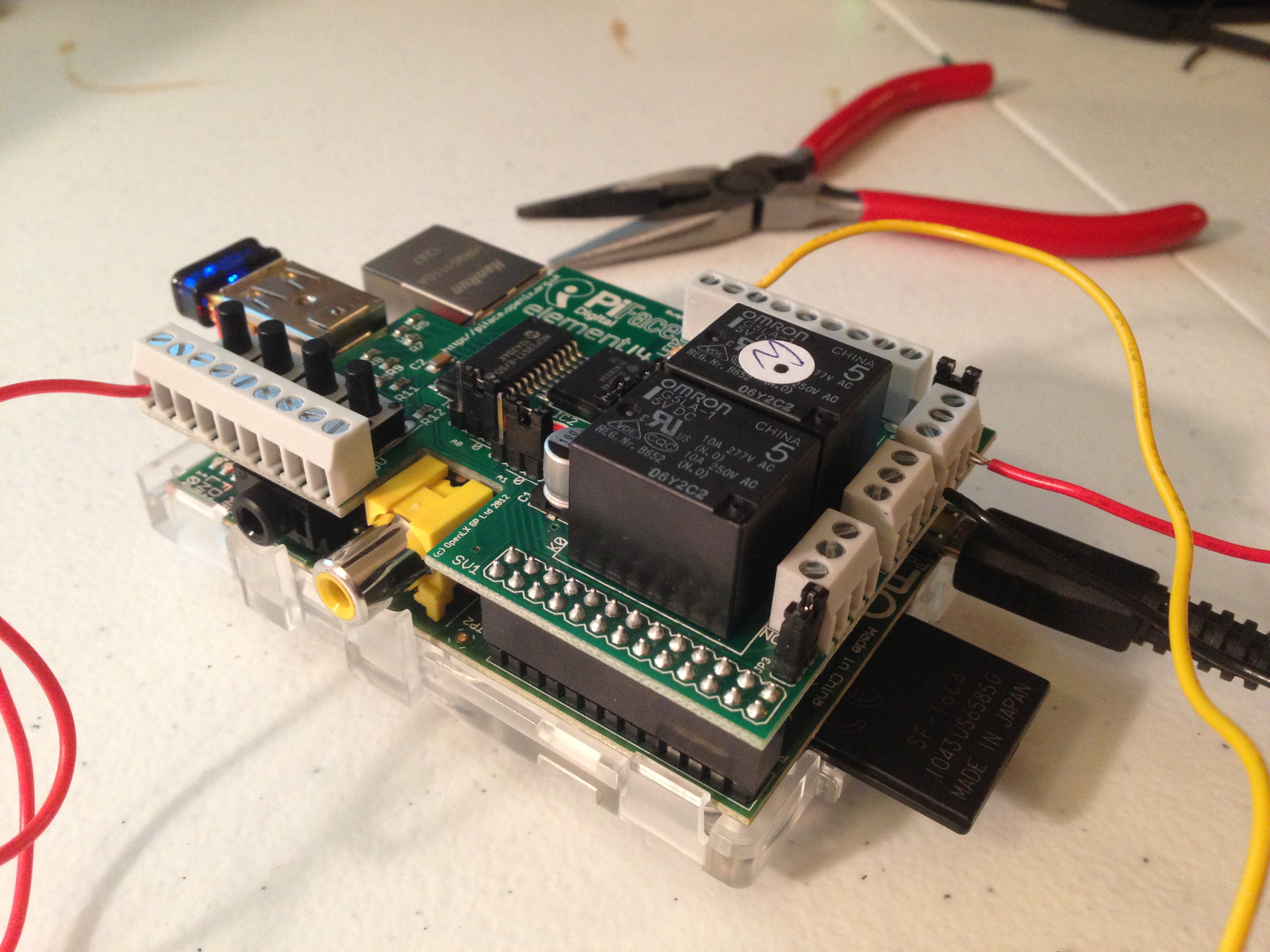
PiFace sitting on top of Raspberry Pi

Breadboard circuit

Kit and Kaboodle

Schematic
THE PARADOX OF PROOF
by Carolyn ChenOn August 31, 2012, Japanese mathematician Shinichi Mochizuki posted four papers on the Internet.
The titles were inscrutable. The volume was daunting: 512 pages in total. The claim was audacious: he said he had proved the ABC Conjecture, a famed, beguilingly simple number theory problem that had stumped mathematicians for decades.
Then Mochizuki walked away. He did not send his work to the Annals of Mathematics. Nor did he leave a message on any of the online forums frequented by mathematicians around the world. He just posted the papers, and waited.
…



My office in Seoul, Korea, near KIAS (Korean Institute for Advanced Study).

Further experiments with Seurat. The code is better organized, and I have more control over “artistic” parameters such as color velocity, particle spacing, and alpha transparency.

 Circle and Square